
Collecting payments
Receive money against invoices, and verify, bounce, cancel or reactivate payments.
Collect a payment#
On a Pending or Partial invoice choose Collect Payment (permission 124 shows the button; Sales → Payments lists the payments, 621 to create there).
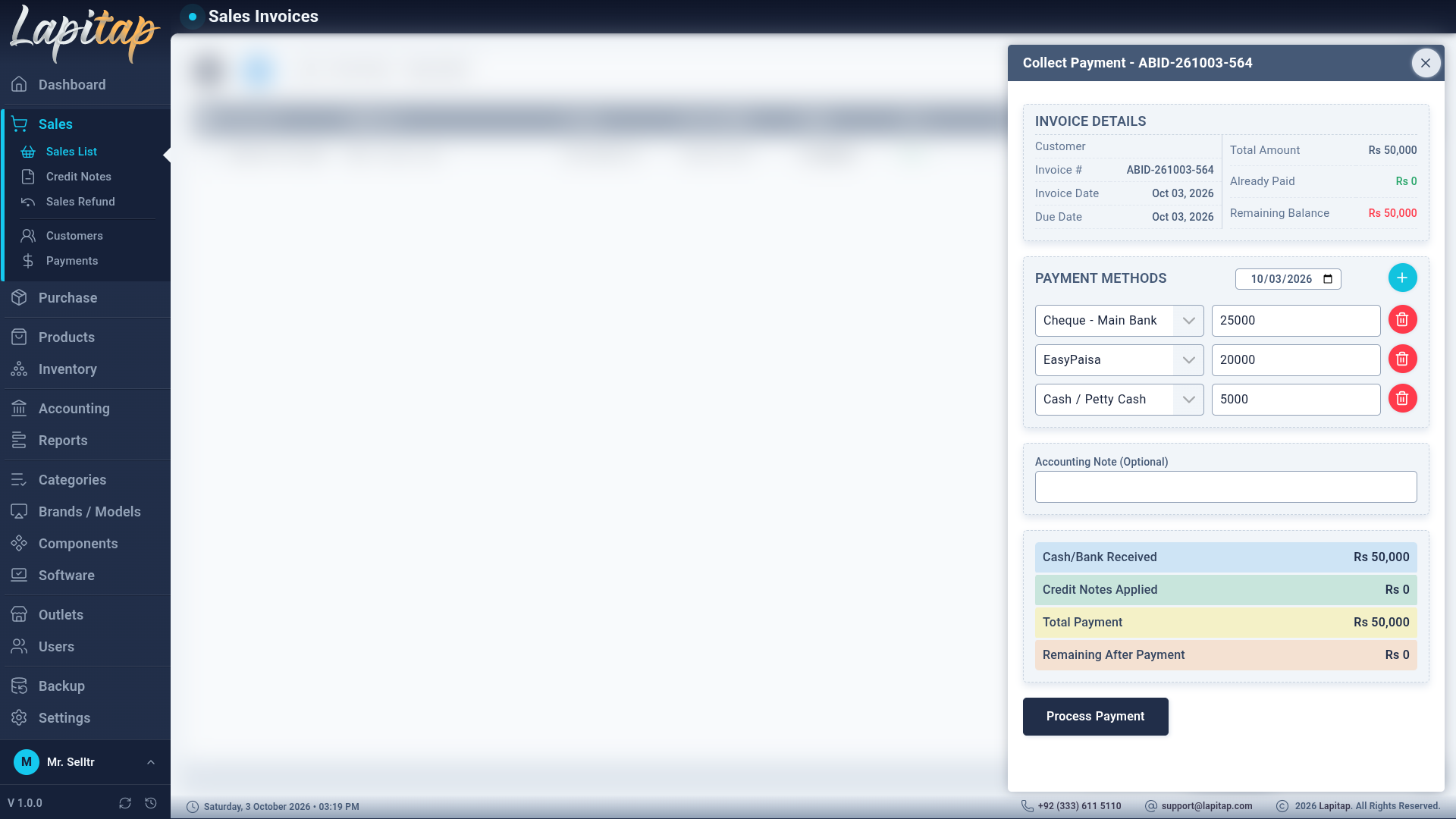
| Part | How it works |
|---|---|
| Payment Method + Amount | One line per method. Add Payment Method to split (part cash, part bank) |
| Apply to Payment | Use the customer's available credit notes towards this invoice, partly or fully |
Rules:
- Every amount must be greater than zero.
- At least one method line or credit note is required.
- Cash + applied credit cannot exceed the invoice's remaining balance (Payment exceeds balance. Max: …); the balance already reflects refunds.
- The payment must belong to the invoice's customer.
Statuses and what they do#
| Status | Meaning |
|---|---|
| Cleared | Money confirmed. Counts toward the invoice and has posted its journal entry |
| Pending | Recorded but not confirmed (cheque, bank transfer…). Does not count yet |
| Bounced | Failed after being recorded |
| Cancelled | Voided |
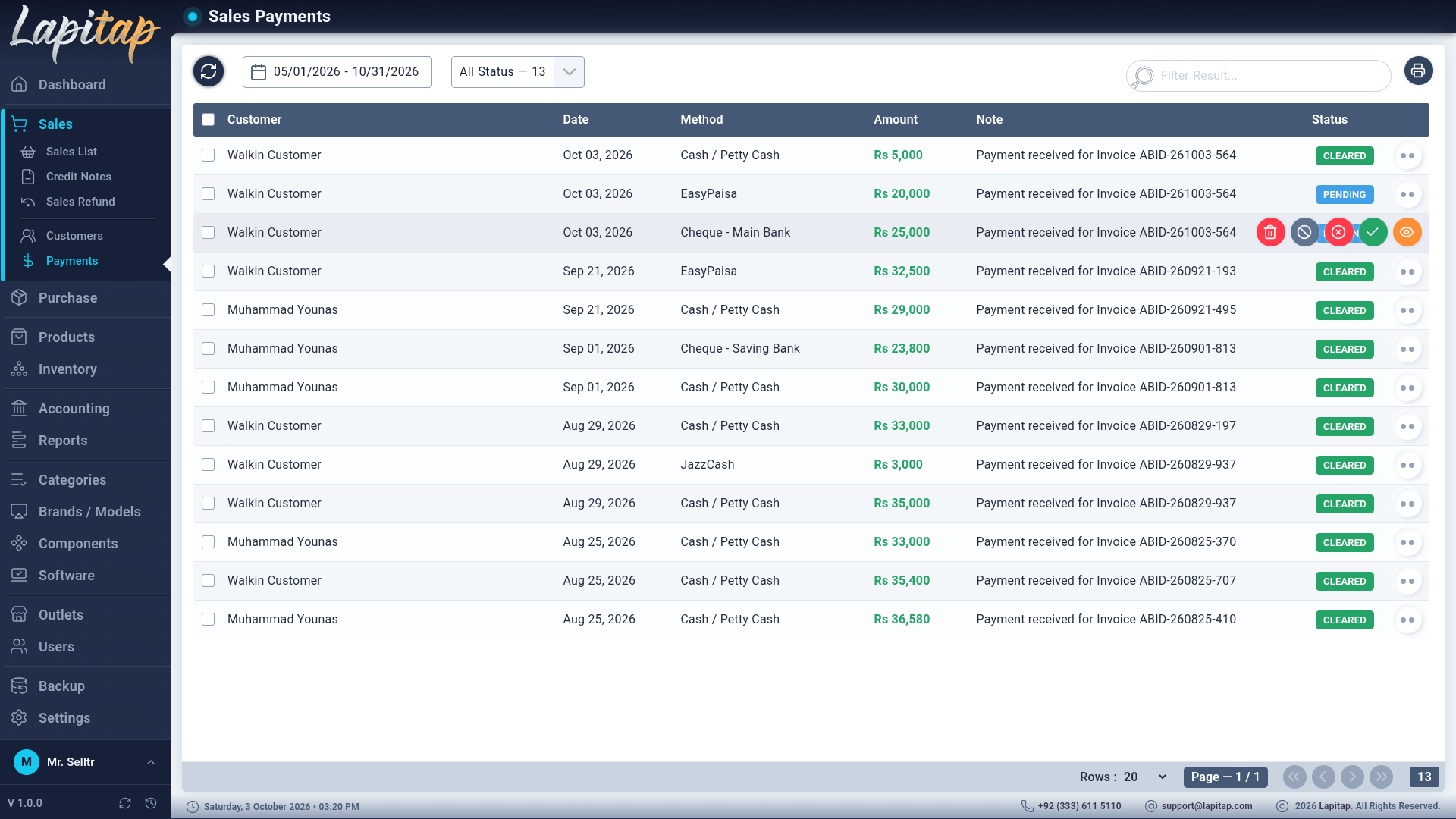
Cash and Card methods are Cleared immediately. Other types (Bank, Mobile Wallet, Online Gateway, Cheque, Other) start Pending and need Verify. Credit-note applications are always Cleared.
Actions on a payment#
| Action | Permission | From | Effect |
|---|---|---|---|
| View | — | any | Detail pop-up: customer, method, status with a plain-language description, total, how it was applied (invoices settled, credit notes used), status history, accounting note |
| Verify | 625 | Pending | → Cleared. Posts the journal entry, updates the invoice. Optional note (cheque no., bank reference) |
| Bounce | 626 | Pending / Cleared | → Bounced. Reverses the journal entry, restores any credit-note credit, re-calculates the invoice, reason required |
| Cancel | 627 | Not already cancelled | → Cancelled. Same reversals as Bounce — for a payment recorded by mistake. Reason required |
| Reactivate | 625 | Bounced | Back to Pending, needs verifying again. Asks for confirmation |
| Delete | 623 | Pending (draft) | Removes it. Cleared or cancelled payments cannot be deleted — cancel them |
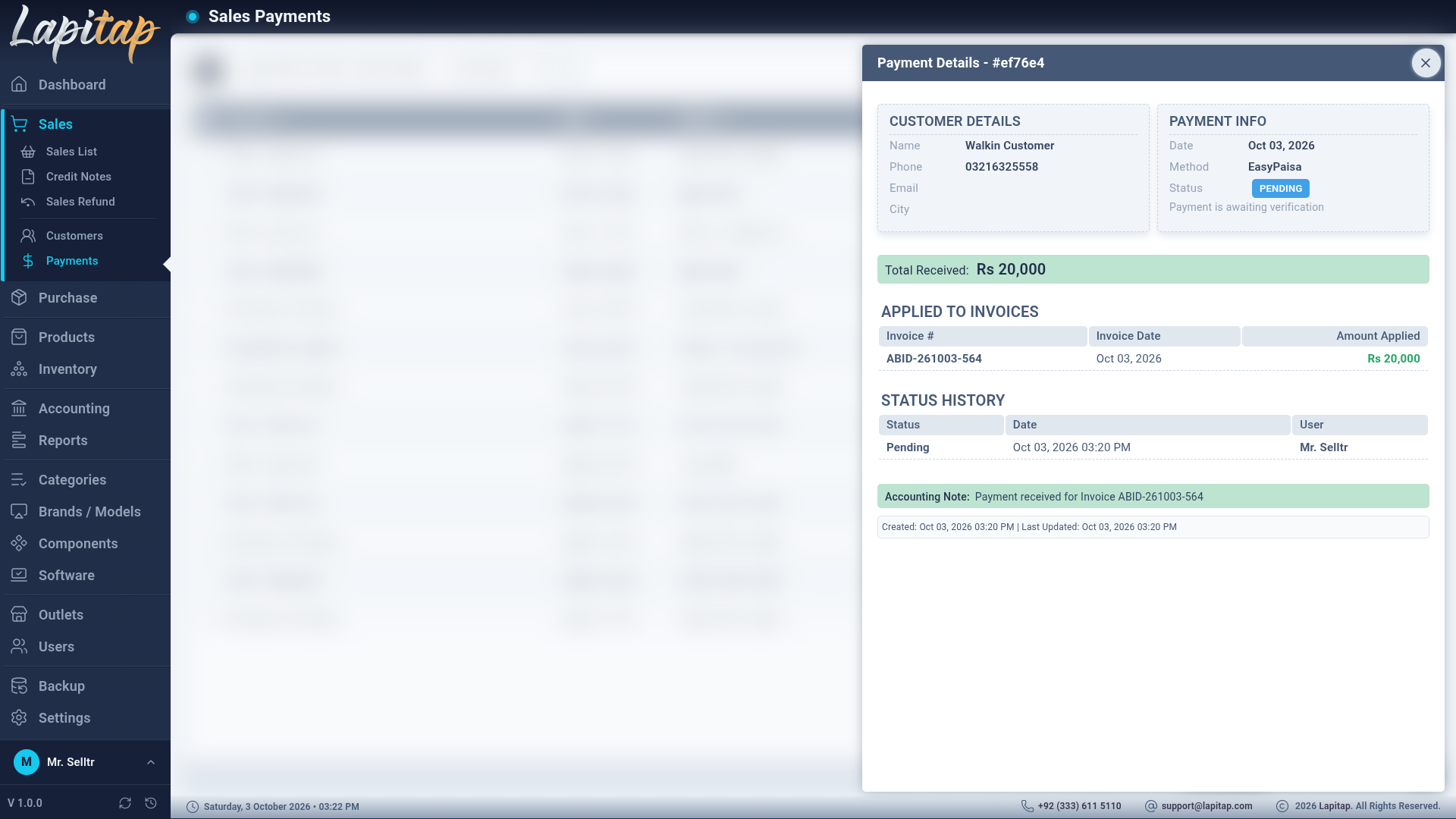
Payment detail#
View opens the full picture of one payment: customer, method, status with a plain-language description (for example Payment is awaiting verification), the total received, which invoices it was applied to, the status history with who changed it and when, and the accounting note.
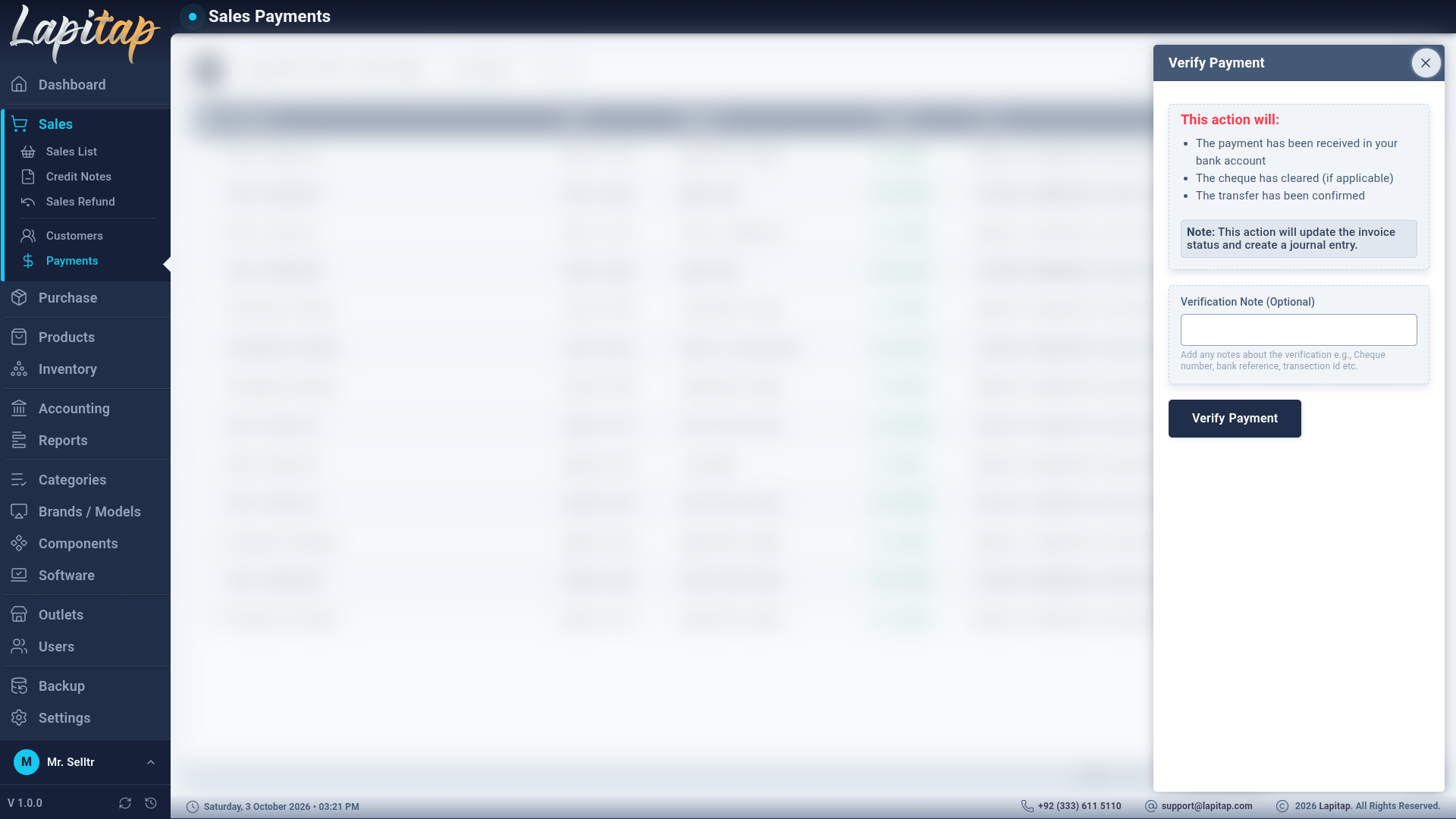
Verify#
The pop-up lists what verifying does — the payment has reached your bank account, the cheque has cleared, the transfer is confirmed — and warns that it updates the invoice status and creates a journal entry. The Verification Note (Optional) is for a cheque number, bank reference or transaction id.
Cancel (and Bounce)#
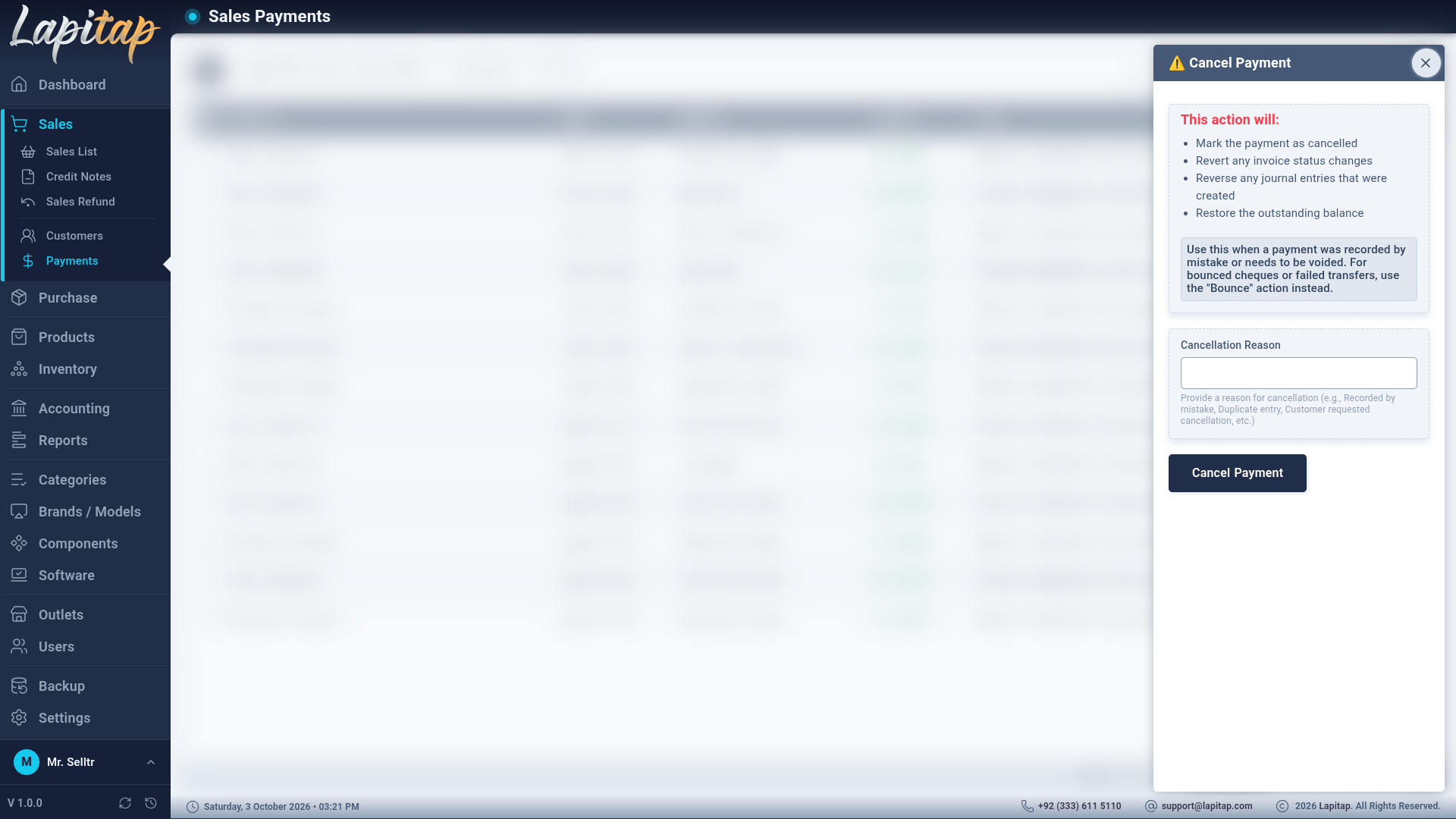
Cancel Payment marks the payment cancelled, reverts invoice status changes, reverses the journal entries that were created and restores the outstanding balance. It needs a Cancellation Reason (for example Recorded by mistake, Duplicate entry). For a bounced cheque or failed transfer the pop-up reminds you to use Bounce instead; Bounce looks the same and also needs a reason.
The list#
Date range (default today), status tabs with live counts, search across code / customer / method / note, Print of the filtered list (printable by status).
TIP
Use Bounce when a cheque fails or a transfer never arrives; use Cancel when the entry itself was wrong. Both restore the invoice's outstanding balance.