
Pricing
Purchase, bargain and sale prices, who can see and edit them, and bulk editing.
Each product has three prices, and each is guarded by its own permission.
| Price | Meaning | Permission |
|---|---|---|
| Purchase Price | Cost of the machine | 207 |
| Sale Price | The listed price | 208 |
| Bargain Price | The lowest price staff may accept; this is what a sale line starts at | 208 |
Prices are loaded fresh from the server when you open the price form and are never part of the ordinary lists, so a user without the permission simply never receives them.
Update Price (bulk, inline)#
Products → Update Price
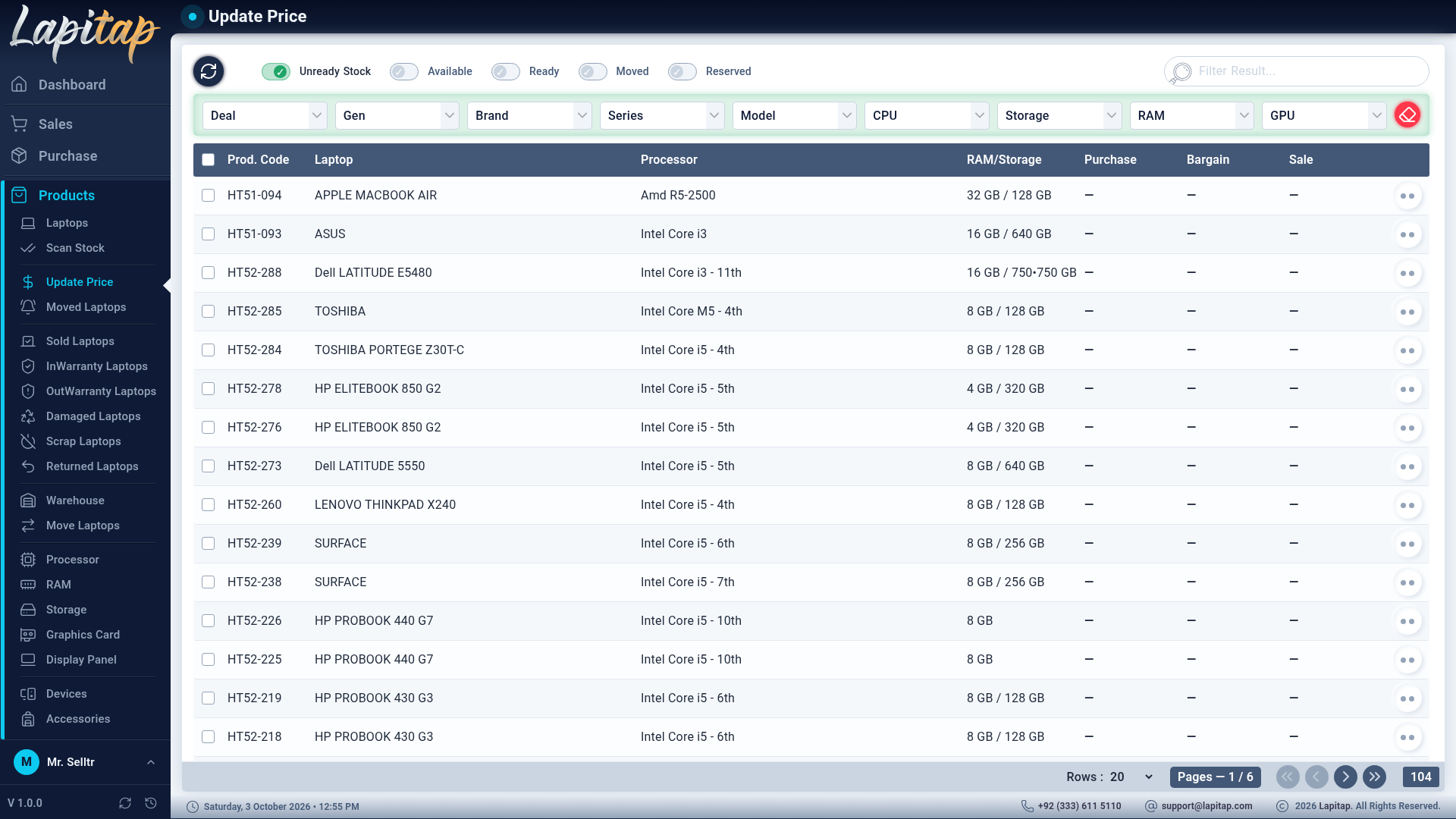
The list defaults to Unready Stock so unpriced laptops surface first. Each price cell is click-to-edit:
| Key | Action |
|---|---|
| Click a price | Start editing |
| Tab | Move between purchase → bargain → sale |
| Enter | Save |
| Esc or click away | Cancel |
You only see the boxes your permissions allow.
Adjust Price (single)#
The dollar icon on any laptop or part opens a pop-up with the same three prices.
Showing the bargain price: Ctrl+Z#
To keep the bargain price off the screen in front of customers, it is hidden by default. Press Ctrl+Z (⌘Z) on the Laptops list to reveal it for 5 seconds.
Prices after upgrades#
When you upgrade a laptop, its purchase price (book value), bargain price and sale price move by the net cost of the change. Editing the purchase price by hand before any upgrade also re-bases the stored base cost.
WARNING
Changing a price never alters invoices already issued.