
Signing in & your account
Log in, stay signed in, reset a forgotten password and change your own password.
Log in#
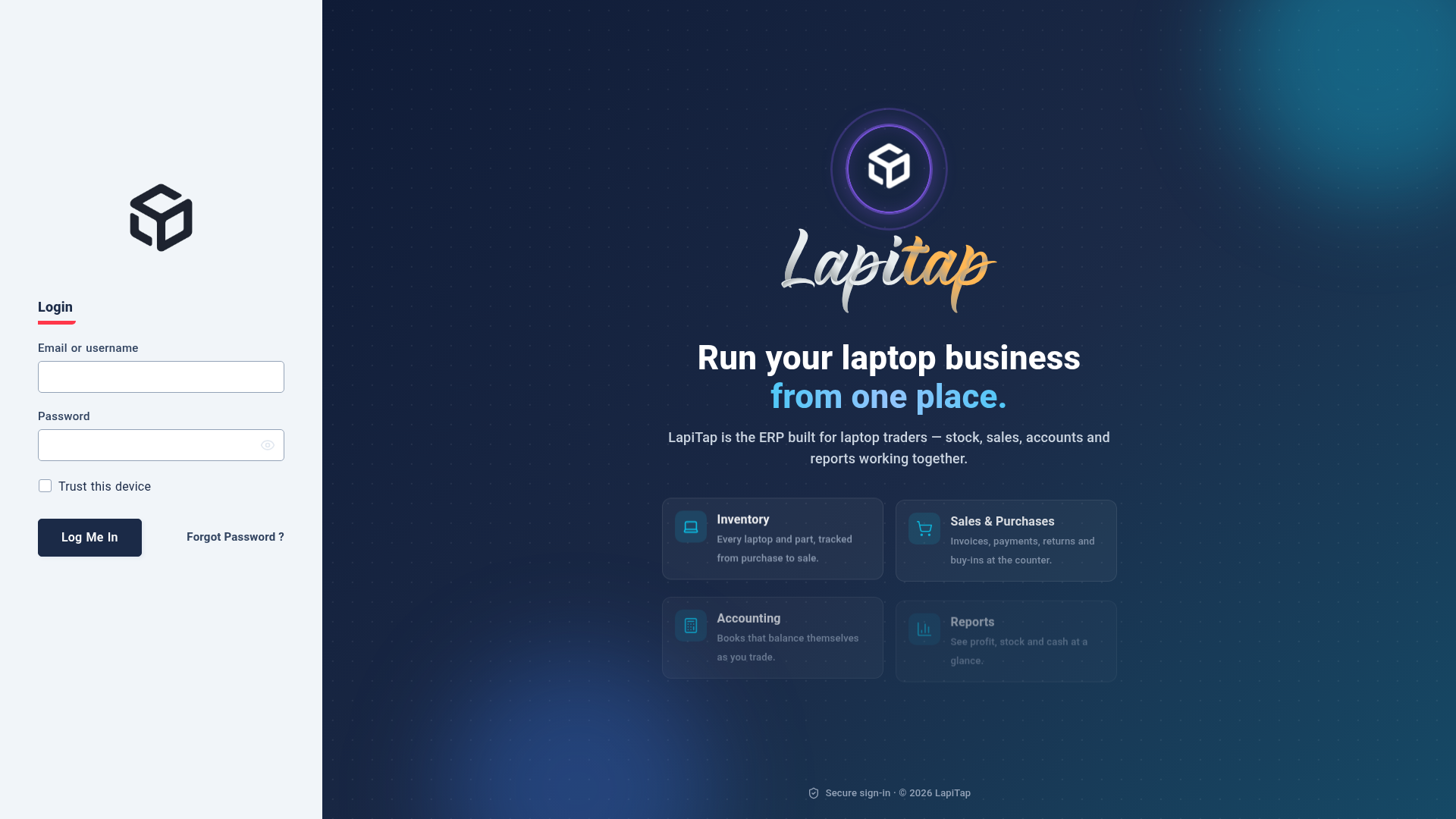
Enter your e-mail or username and password, then Log Me In.
- The eye icon shows or hides the password.
- Trust this device keeps you signed in: on the next visit the app silently restores your session from a secure cookie instead of asking again. Leave it off on shared computers.
- A wrong username or password always shows the same message (Invalid login credentials), so nobody can discover which accounts exist.
- After login you land on the Dashboard (or the page you were trying to open).
The login page also shows the install link while the system is still fresh.
Forgot password#
- Choose Forgot password and enter your e-mail.
- Whether or not the e-mail exists you see the same confirmation, and you are sent back to login after about 10 seconds (again to prevent account discovery).
- If the account exists, a reset link is e-mailed to its stored address. It opens
/auth/reset-password/<code>. - Choose a new password. It must be at least 5 characters and pass the "strong password" rule; re-type it to confirm.
The mail is only sent if the administrator has set up outgoing e-mail.
Change your own password#
Click your name card at the bottom of the sidebar and choose Change Password, or open My Profile. Enter the new password and Verify Password; they must match.
My Profile#
Shows your identity, contact details, outlet and access level, with the change-password form beside it. Available to every signed-in user.
Signing out and sessions#
Use the same sidebar menu to log out. The session refreshes itself in the background; if it can no longer be refreshed you are returned to the login page and sent back to where you were after signing in.
NOTE
A disabled account cannot refresh its session.