
Buy-Ins (walk-in purchases)
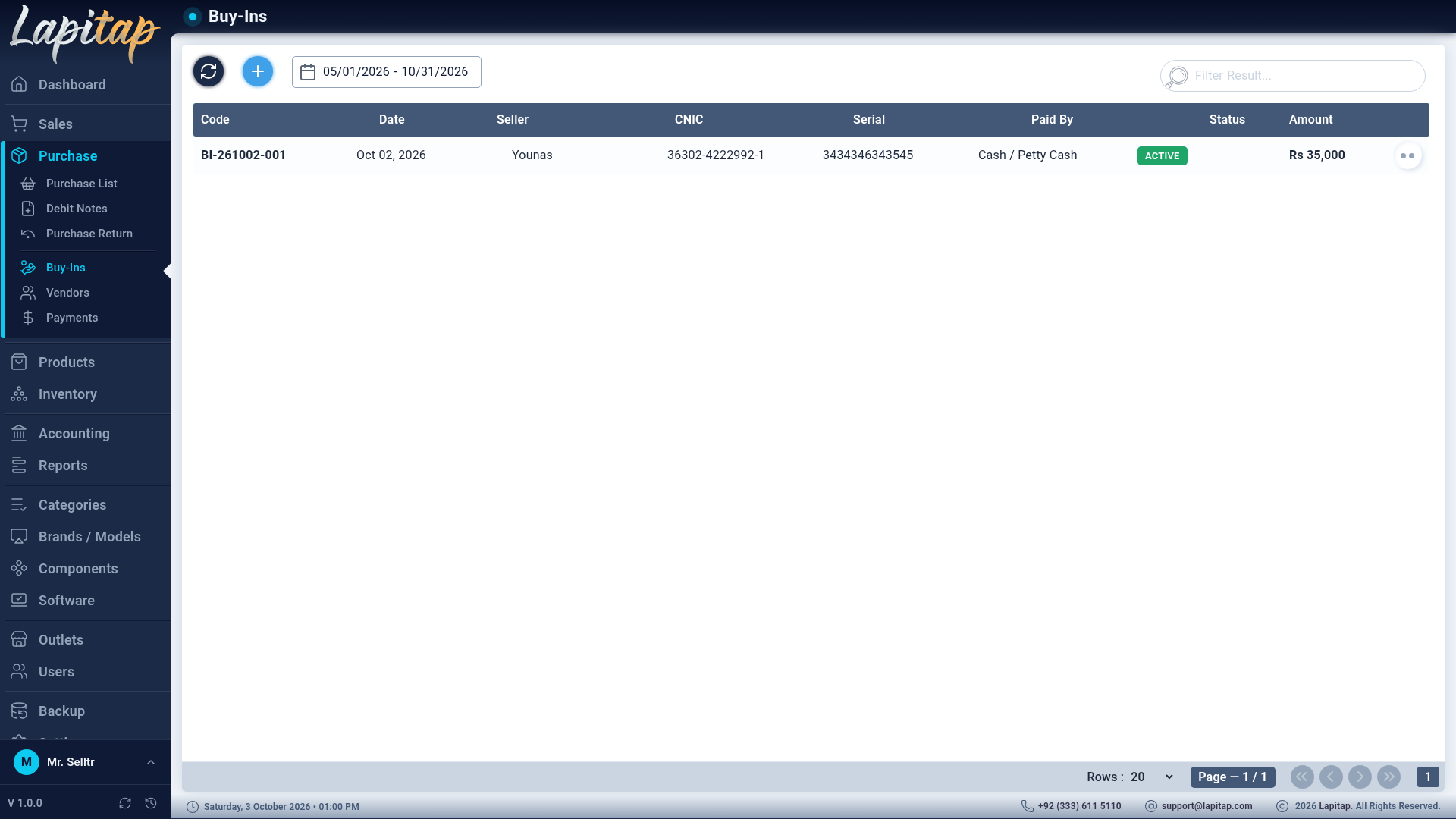
Buy one laptop from a walk-in seller — ID captured, paid immediately, voucher printed.
Purchase → Buy-Ins (view 175 · create 176 · update 177 · void 178). Unlike a purchase deal, a Buy-In buys one laptop from an individual — no vendor, no deal.
New Buy-In#
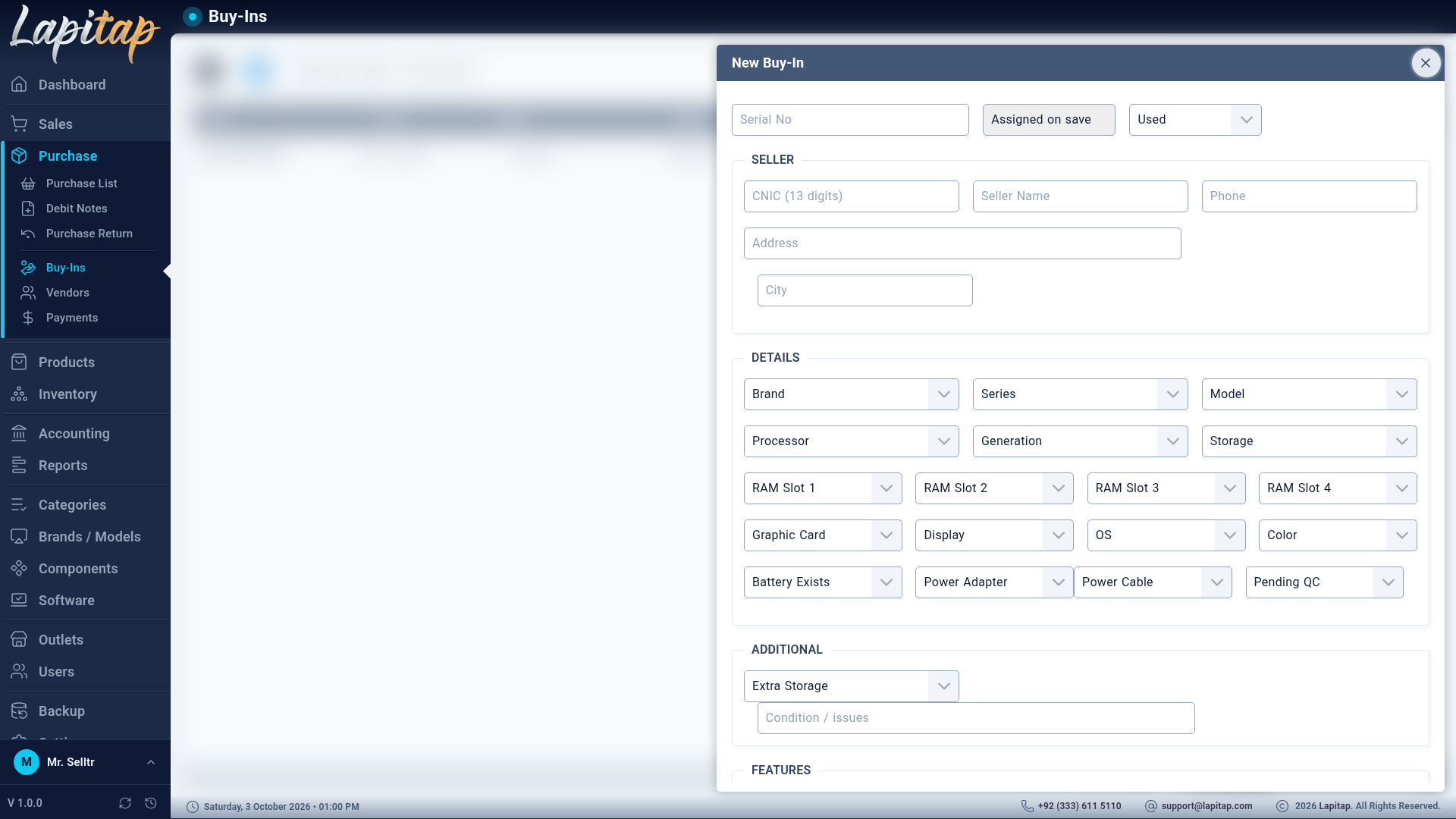
| Group | Fields |
|---|---|
| Seller | Seller Name (required), CNIC — 13 digits (required), Phone (required), Address, City |
| Laptop | The same fields as Add Laptop: Product ID, Serial No (required), Product Type, Brand (required), Series, Model, Processor, Build Year, Generation, Storage, Extra Storage, RAM Slot 1–4, Graphic Card, Display, OS, Color, Battery, Power Adapter, Power Cable |
| Condition | Condition / issues, Status, Note |
| Deal | Outlet (required), Agreed Price (required, > 0), Paid By (payment method, required) |
Typing a known CNIC autofills the seller and shows their buy-in history.
On saving, in one step:
- The laptop is created as a Used laptop with status Pending QC, into the chosen outlet.
- The code is
BI-YYMMDD-NNN(next number for the day). - The payment is posted: Dr the category's cost account, Cr the Paid By method's account.
- The laptop's barcode label is queued, and the buy-in opens so its voucher can be printed.
You may only buy into your own outlet.
The list#
Date range (default today). Search by code, serial, and the seller's name, phone or CNIC. Row actions: View, Print Voucher, Queue Barcode, Void (178).
View#
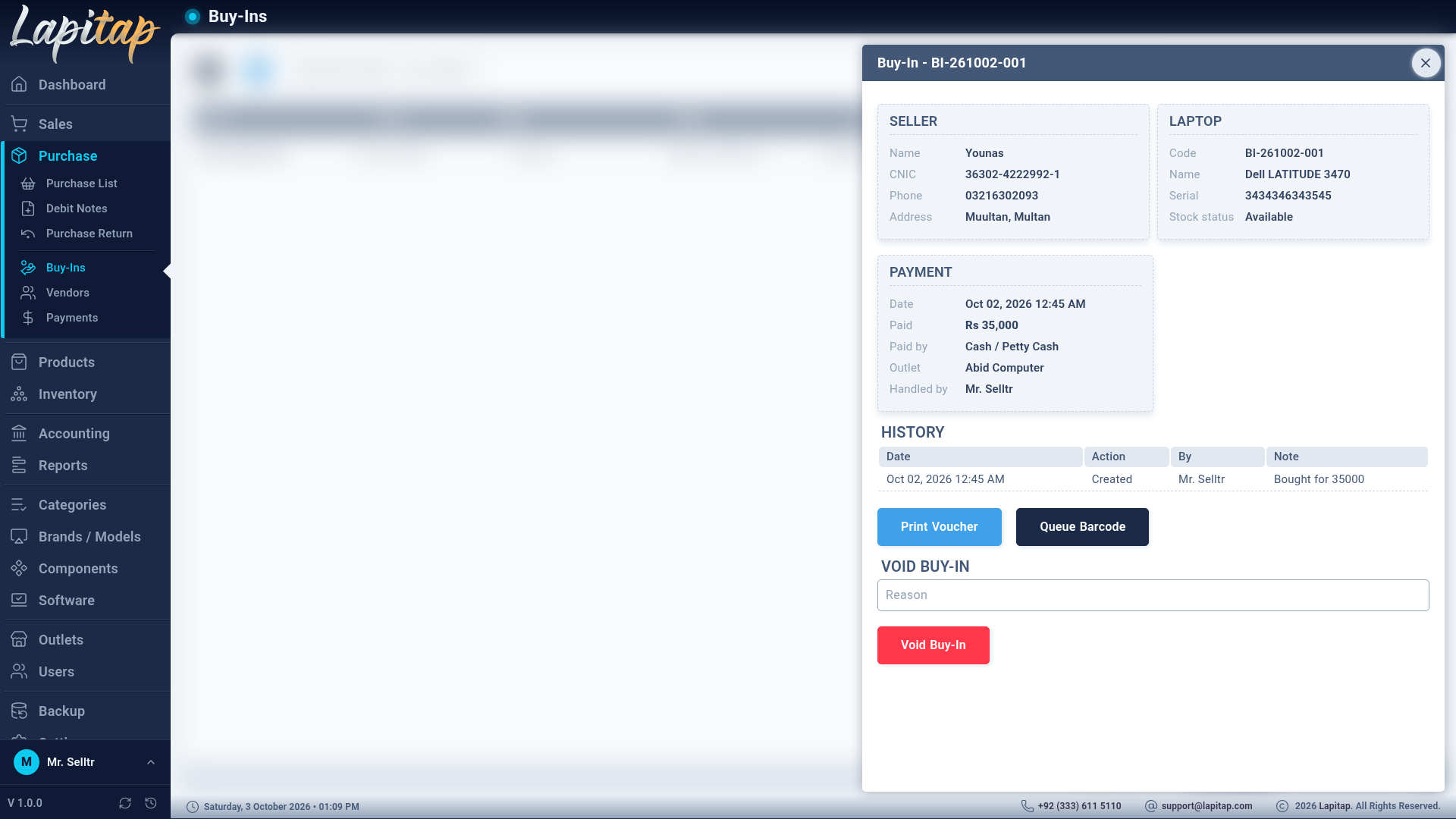
Seller, laptop, payment and the history. A manager with 177 can adjust the price (the accounting entry and the laptop's cost are re-posted) and correct seller details and the note; 178 can void.
Void#
Undo a wrong entry or when the seller takes the laptop back: it reverses the payment and removes the laptop. A reason is required.
Voucher#
The Purchase Voucher is what the seller signs: seller (name, CNIC, phone, address), laptop (code, serial, condition), outlet, amount paid and who paid, a declaration of ownership and signature lines.
NOTE
Buy-In permission codes are separate from the rest. They must exist in your installation's permission list and be ticked on the roles that should use them (see Roles & permissions). The Buy-Ins report lists them with margin once sold; voided buy-ins are shown but not counted.