
Upgrading laptops
Swap components from stock, add custom parts and services, and see the cost effect.
The Upgrade icon (permission 209) opens the Laptop Upgrade form. It changes a machine's parts using your own parts stock and records the cost effect.
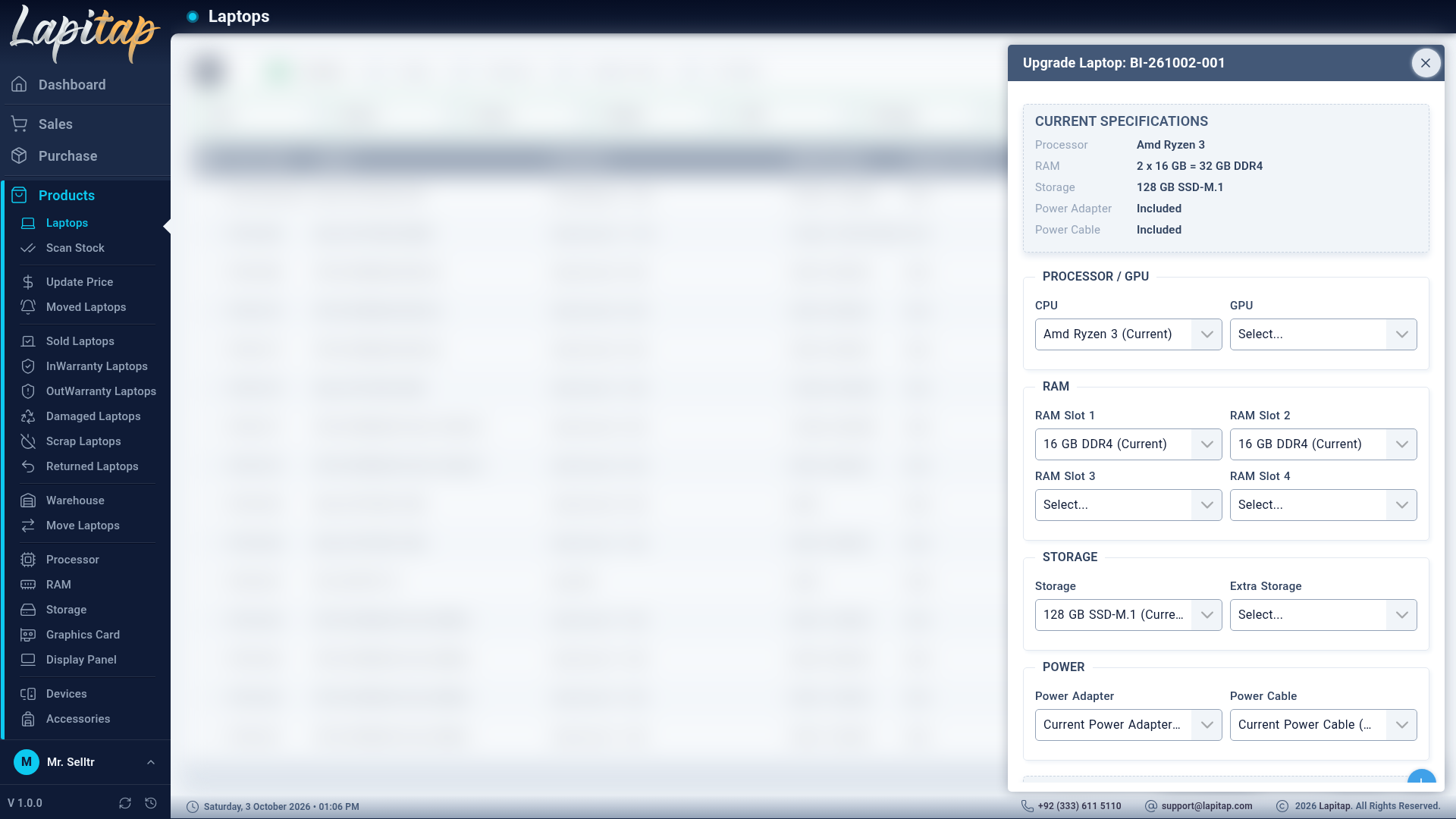
Components you can change#
CPU, GPU, RAM Slot 1–4, Storage, Extra Storage, Power Adapter, Power Cable. The drop-downs only list parts that have stock (> 0) in the laptop's outlet.
| What you do | What happens |
|---|---|
| Choose a different part | replace — old part returns to stock, new part leaves stock |
| Choose a part where there was none | added — new part leaves stock |
| Clear the selection | removed — old part returns to stock |
| RAM | Handled by comparing slots: only parts that actually changed move |
If stock is not enough the upgrade stops with Insufficient stock for component ….
Custom parts and services#
Use + to add a line not in stock — a Category, a Part/Service Name and Charges (e.g. Windows installation). It becomes a service entry.
Notes and review#
Upgrade Notes is free text. Before saving, the form lists each change with its price difference (new price − old price).
What the system books#
Every upgrade posts balanced journal entries (sell the old part, buy the new one, service charges). The laptop's:
- purchase price (book value) becomes original base cost + net upgrade cost;
- bargain price and sale price are adjusted by the same impact.
Reviewing#
The laptop history shows each upgrade and its per-component impact. The Upgrades report lists them by date, laptop, outlet, items and impact. Parts counts and the movement log update too.
NOTE
Upgrades are blocked for Reserved, Sold and Returned laptops.