
v1 Atlas/Reports & printing
Printing & labels
Paper formats, what can be printed, and branding on documents.
How printing works#
A Print button anywhere opens a preview over the page with a toolbar: choose the format, then Print or Cancel. The Print button stays disabled until the outlet branding and logos have loaded, so you never print a half-loaded header.
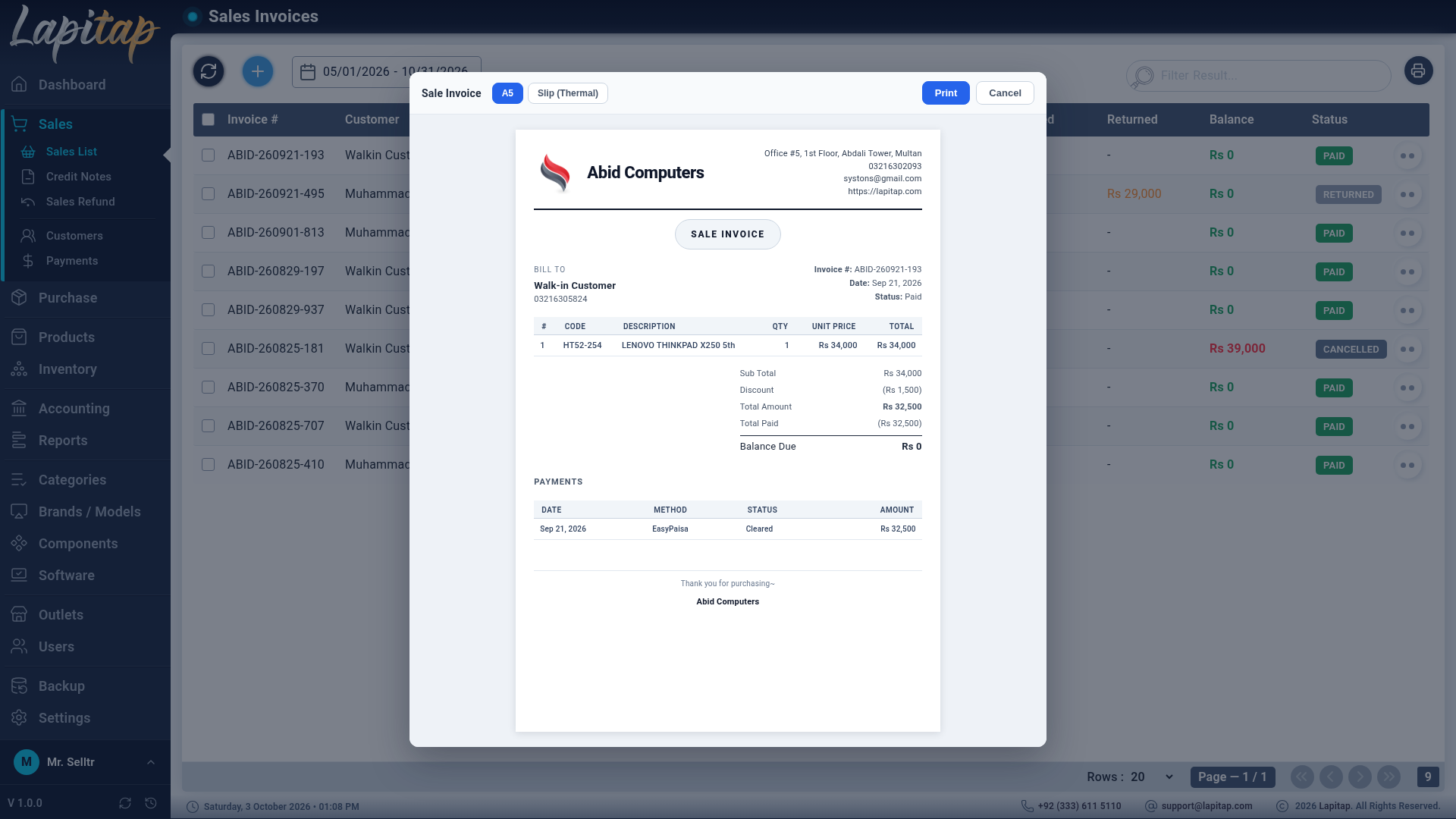
Formats#
| Format | Use |
|---|---|
| Slip (Thermal) | Receipt printers at the counter |
| A5 | Compact invoices |
| A4 | Full-page invoices and reports |
Each printable allows the formats that suit it.
Header and footer#
The header shows the print logo, business name and tagline on the left; address, phone, email, website and NTN on the right. The footer is the outlet's Print Footer Note. Both come from outlet branding — for a sale, the branding of the sale's outlet.
Printable documents#
| Group | Items |
|---|---|
| Documents | Sale Invoice, Purchase Invoice, Buy-In Purchase Voucher (the seller's signed receipt) |
| Lists | Sales invoices, purchase invoices, payments (sale or purchase, by status), expenses, sold laptops, in-warranty and out-warranty laptops (with total cost), damaged / scrap laptops, inventory (with per-outlet columns) |
| Reports | Balance Sheet, Profit & Loss, Trial Balance, Day Book, Expenses, Receivable / Payable ageing, Sales by User, Purchases by Category, Laptop Status Summary, Deal Report, and a generic table layout for all other reports |
Barcode labels#
Labels print separately, one 1.5″ × 1″ label per page with a Code 128 barcode — see Scanner, tray & labels.
Tips#
- Use your browser's print dialog; set margins to None for thermal slips.
- Put terms, thanks or warranty policy in the Print Footer Note.